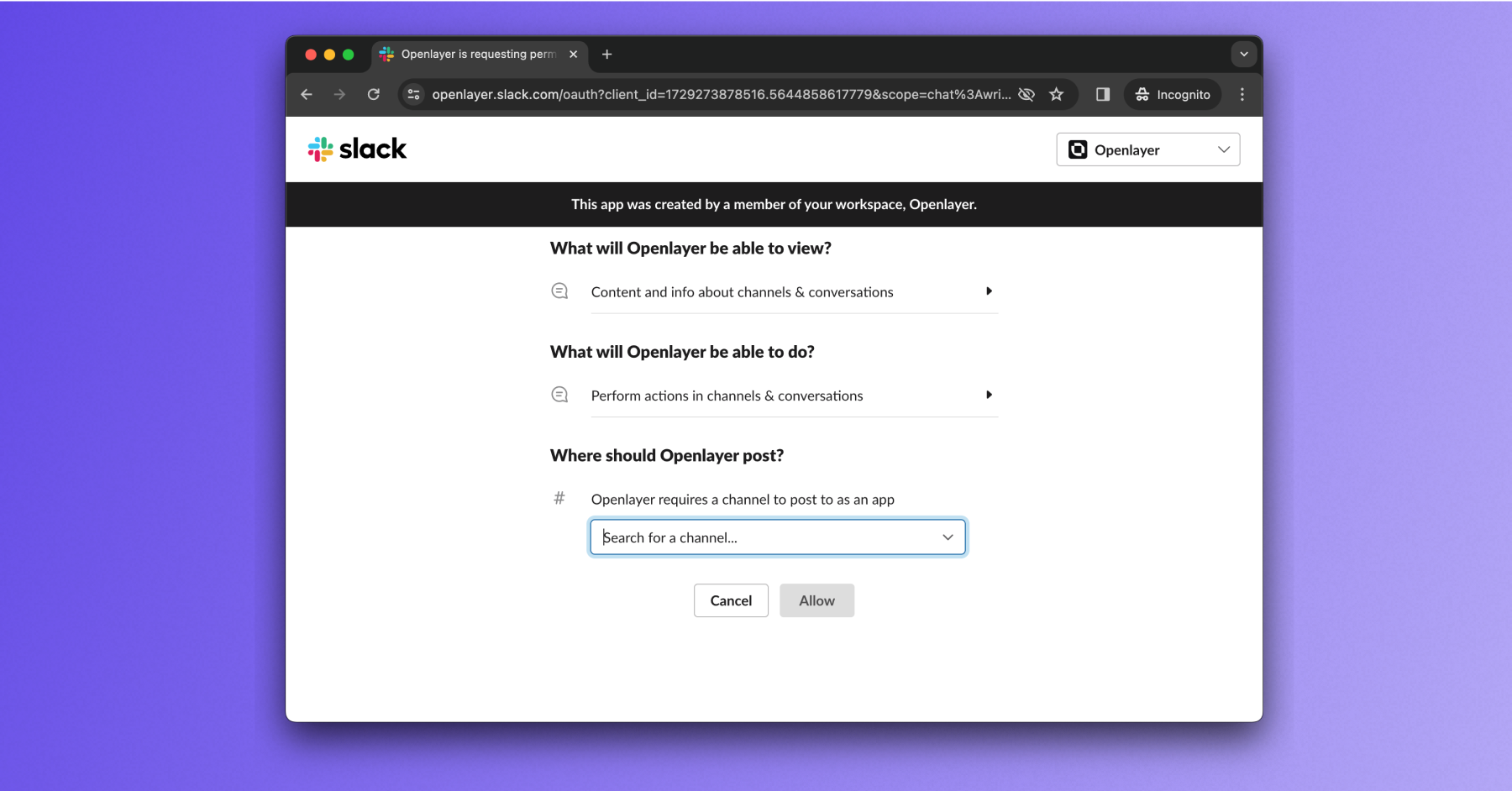
Connect Slack
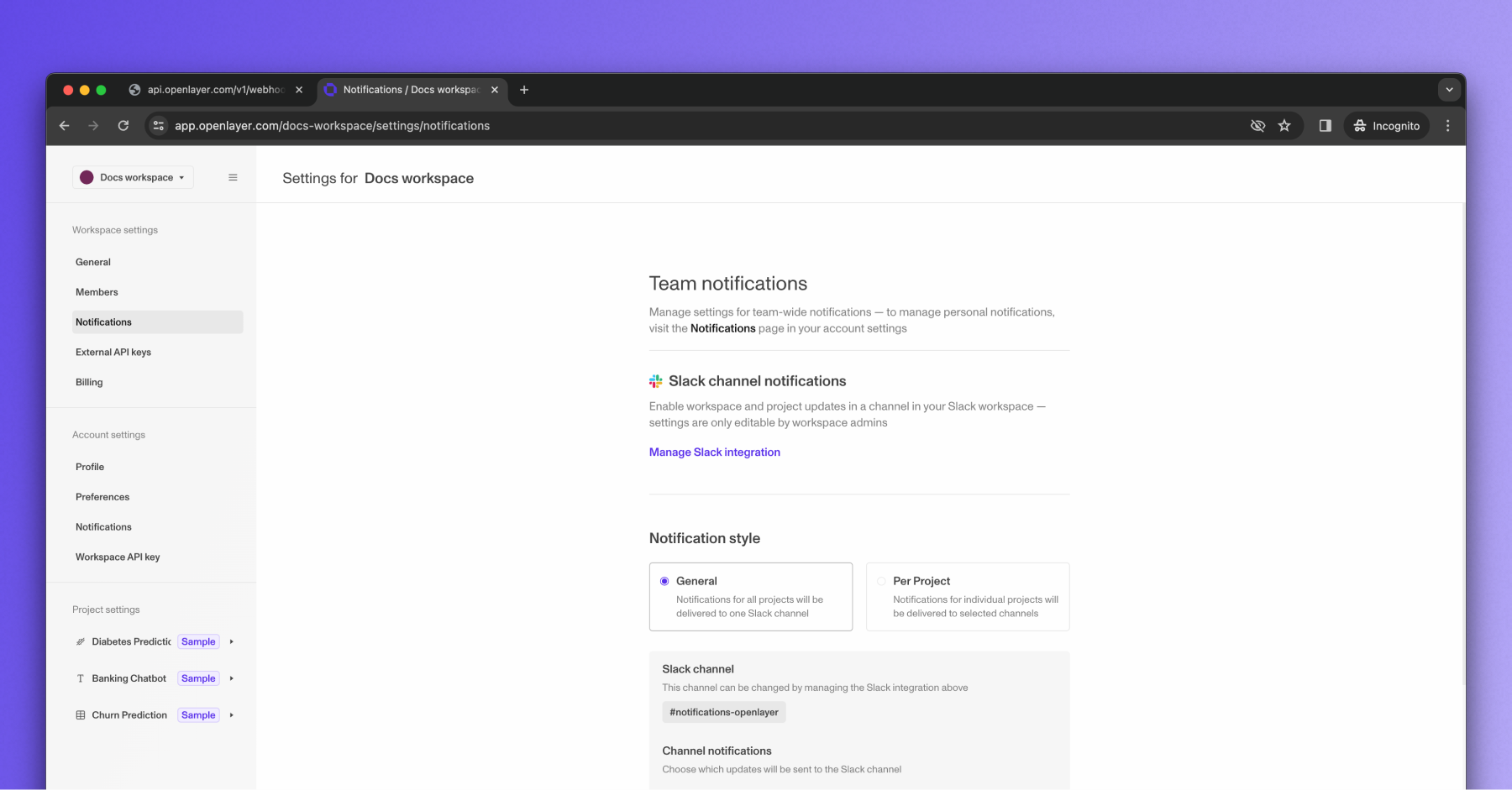
First, click on the workspace name in the upper left corner and select “Settings.”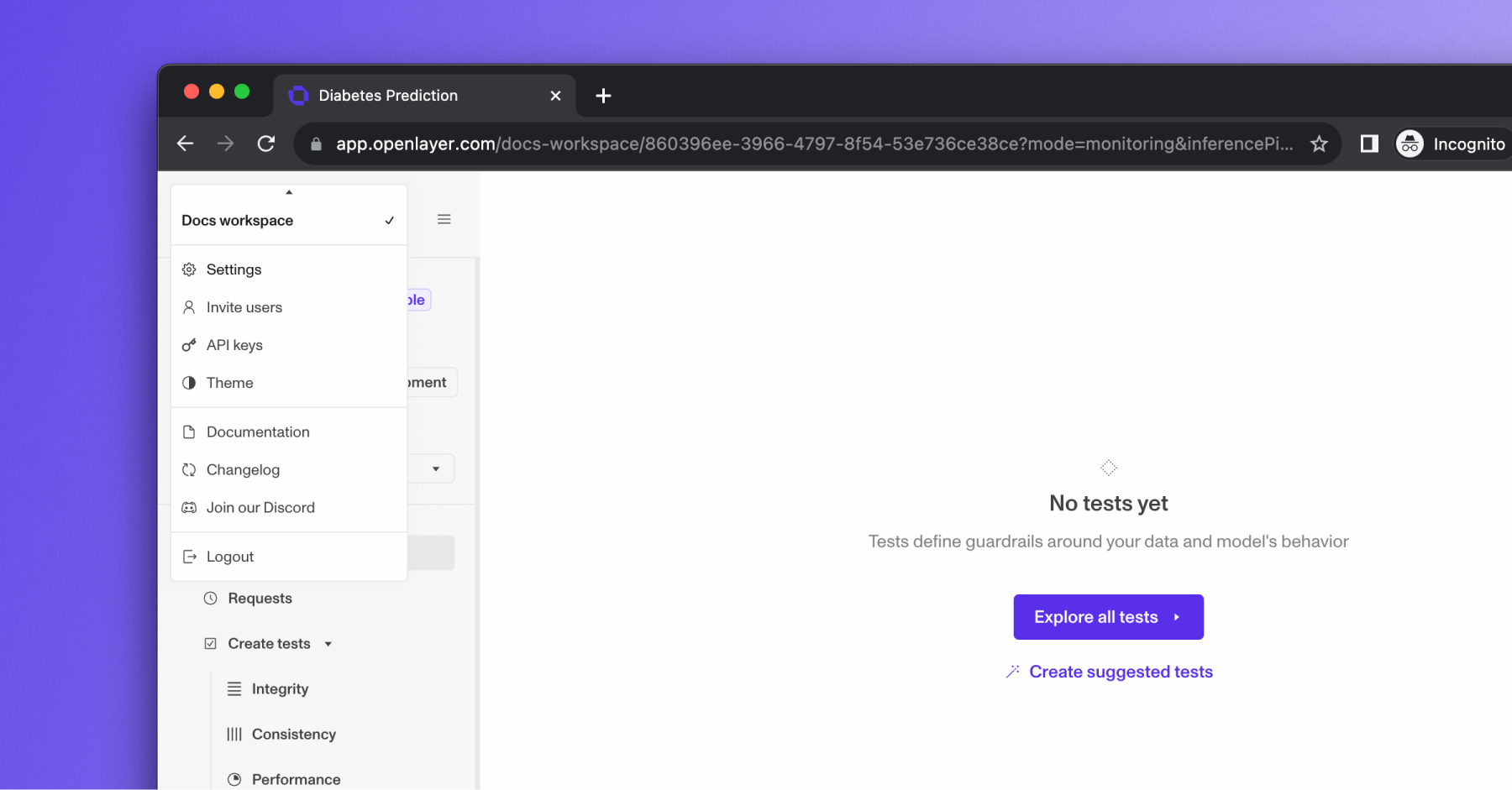
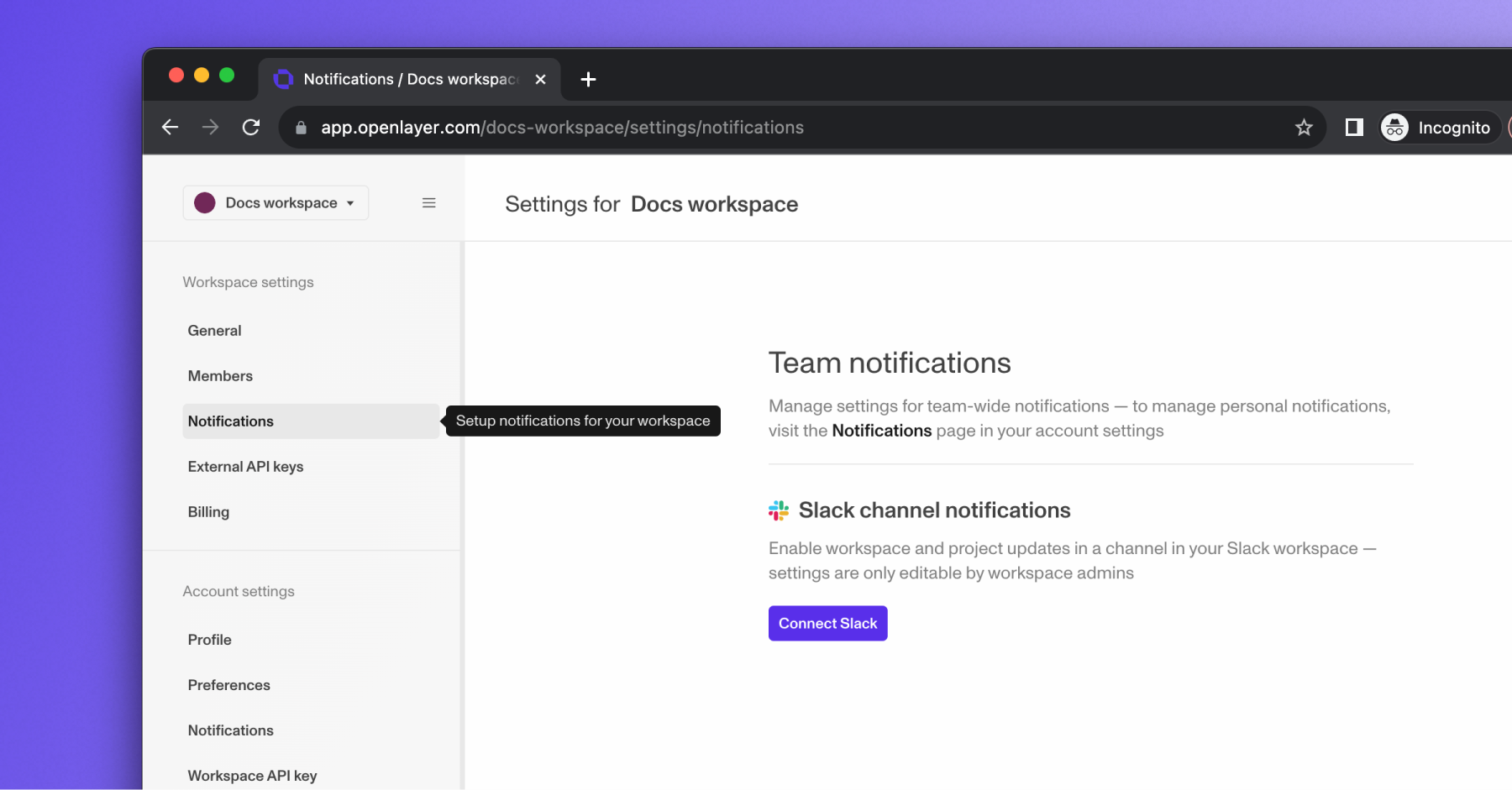
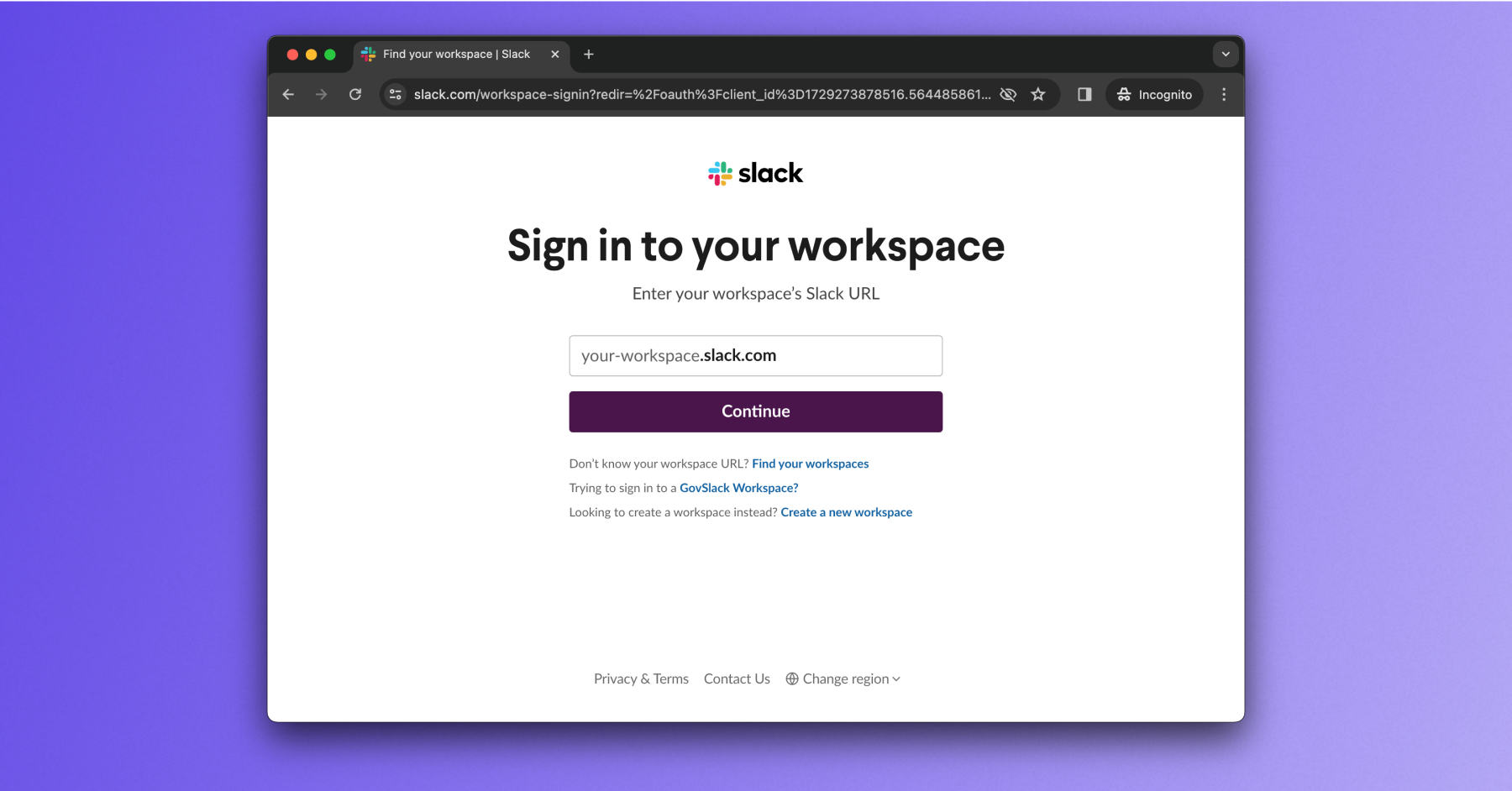
Manage workspace notification preferences
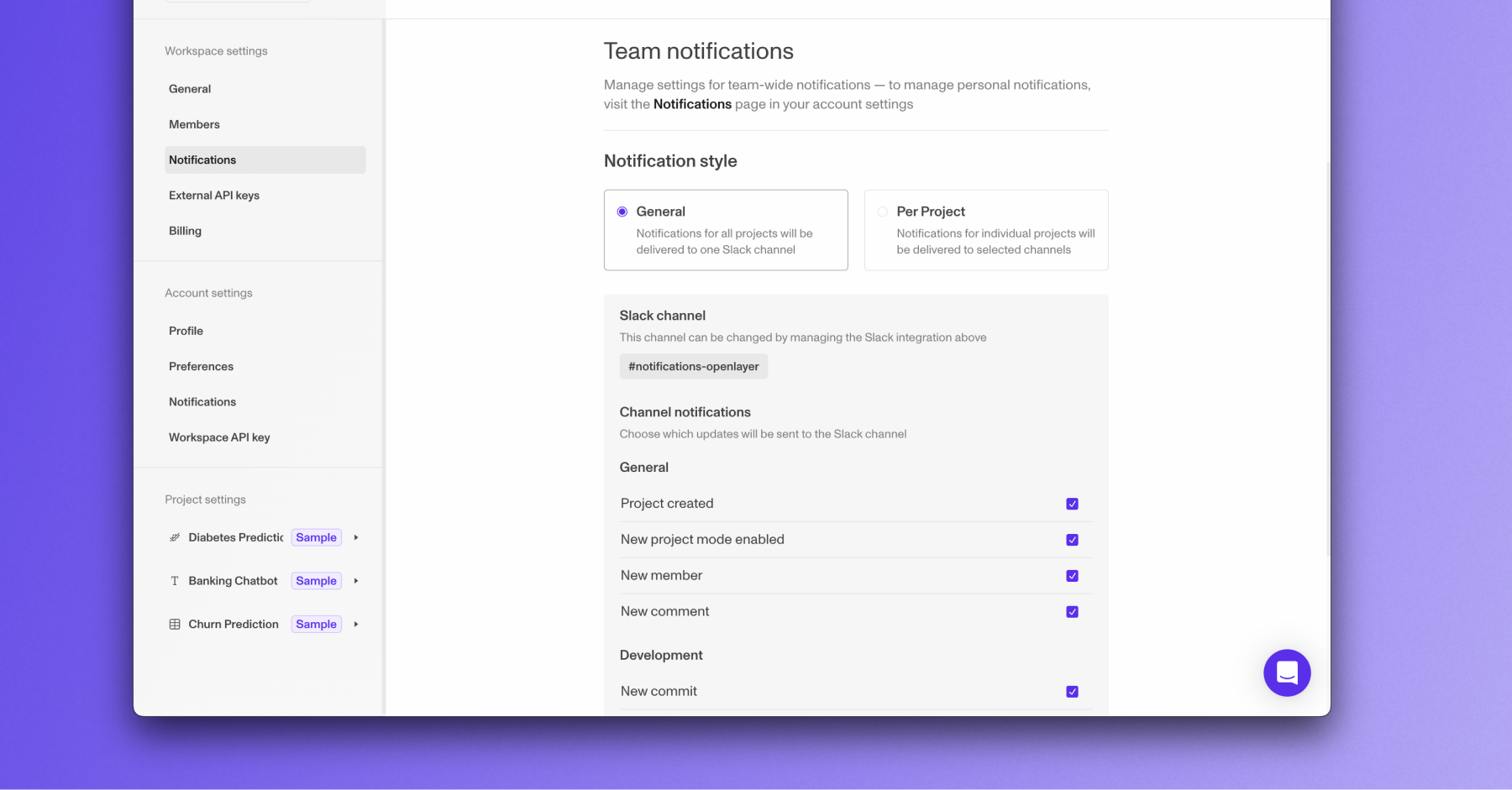
Once your workspace is connected to Slack, you can manage your team’s notification preferences. You can choose between the “General” or “Per project” notification style.- The “General” notification style will send notifications to the Slack channel you selected for all projects in your workspace.
- The “Per project” notification style will send notifications to the Slack channel you selected for each project.