

All access is read-only. Openlayer reads compliance log files and never
writes to, modifies, or deletes anything in your OpenAI workspace.
How it works
The Compliance Logs Platform is an append-only export of your ChatGPT workspace activity. OpenAI writes activity into JSONL log files; Openlayer walks those files forward and turns each event into a trace. Once connected, Openlayer:- Registers two sources — ChatGPT (Enterprise / Edu) and Codex, which you enable independently
- Walks log files incrementally — each source keeps its own checkpoint, so every sync picks up exactly where the last one stopped
- Verifies every download — files are fetched through a short-lived signed URL and checked against the size and SHA-256 digest OpenAI publishes for them
- Reconstructs conversations — ChatGPT messages are paired through their
previous_message_idgraph (which handles branches and edits), and Codex prompts, responses, and tool calls are correlated into turns - Writes traces — each assistant reply becomes a row in the Openlayer project you mapped the source to, with the conversation as the session
Prerequisites
- A ChatGPT Enterprise or Edu workspace, and its workspace ID.
- An Admin API key for that workspace, scoped to compliance log reads (see below).
- An Openlayer workspace where you are an admin. Connecting, enabling sources, and disconnecting are all admin-only actions.
Scope the Admin API key
Request only the two read scopes the connector uses:
You can grant just one of the two scopes. Both sources are always registered when you connect; the
Test connection result tells you which of them your key can actually read, and you choose which
to enable.
Setup guide
Step 1: Open the integration
In Openlayer, go to Settings → Integrations, find OpenAI Compliance, and click Enable.Step 2: Connect
Enter your OpenAI workspace ID and Admin API key. Click Test connection to validate the key without saving it. The result names the event types the key can actually read, so you can confirm the scopes before committing to them.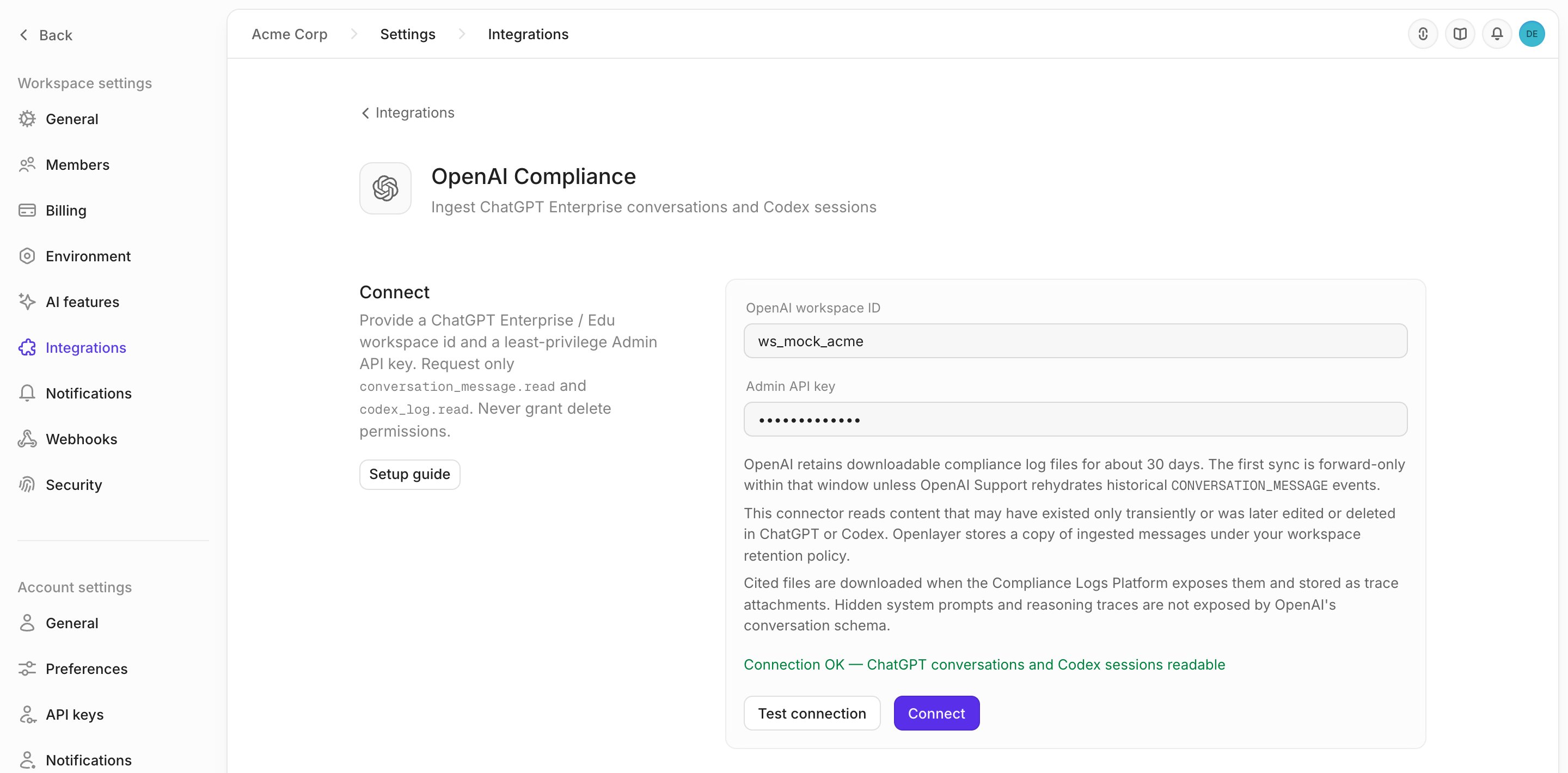
Step 3: Enable your sources
Connecting registers two sources. Neither ingests anything until you enable it, so you can bring ChatGPT and Codex online separately. Click Enable on a source and choose where its data goes:- Create new project — Openlayer creates a project and a default pipeline for the source, named
after it (
OpenAI - ChatGPT (Enterprise / Edu),OpenAI - Codex) - Map to existing project — pick an existing project and pipeline instead
Step 4: Set the sync schedule
Under Settings, choose how often Openlayer checks for new log files: every 15 minutes, 30 minutes, or every hour. Turn Periodic sync off to pause ingestion without disconnecting, or click Sync now to run a tick immediately.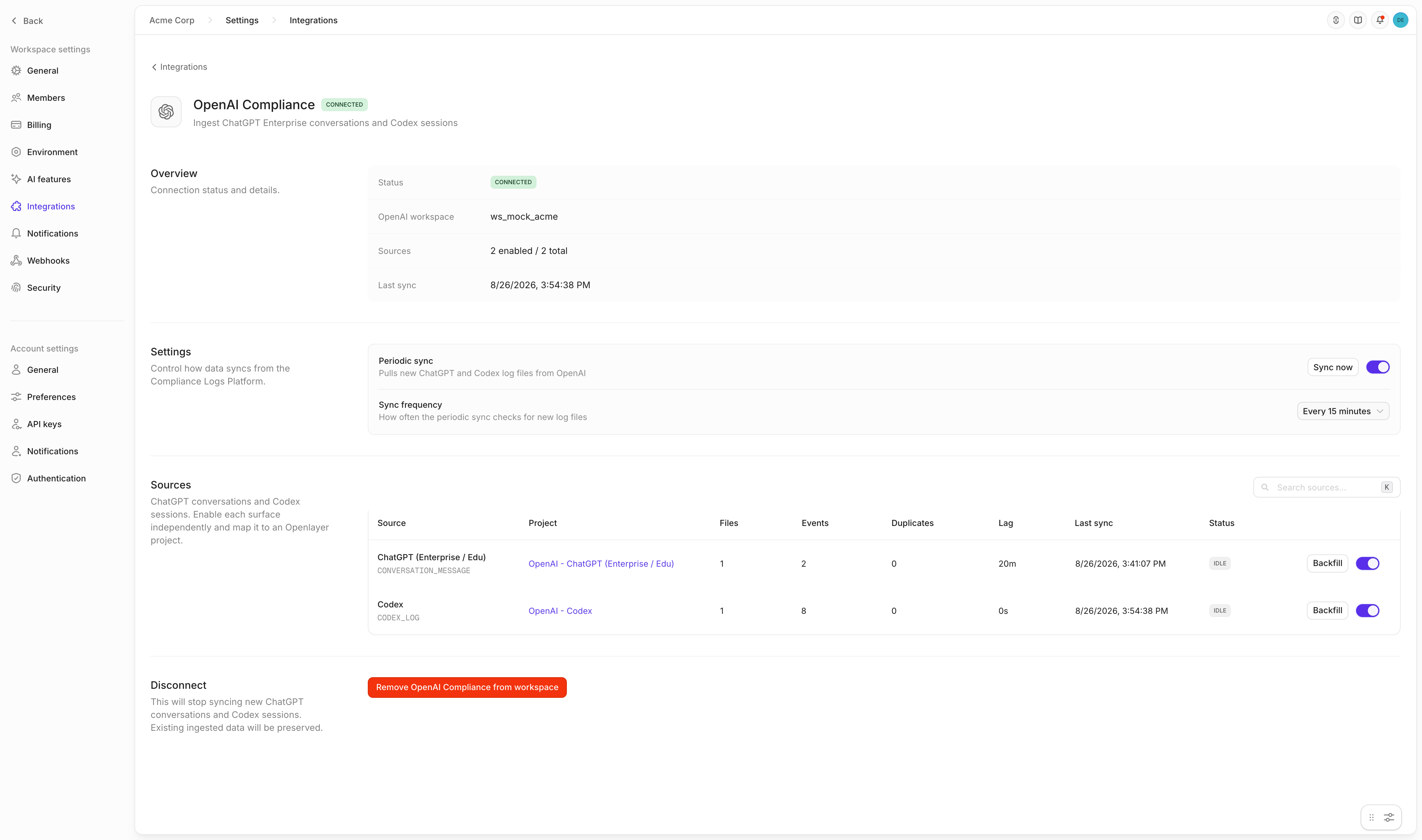
The retention window
OpenAI keeps downloadable compliance log files for roughly 30 days. Two consequences worth planning around:- The first sync is forward-only within that window. Activity older than the retained files is not
available to pull, and no backfill can reach it — unless OpenAI Support rehydrates historical
CONVERSATION_MESSAGEevents for your workspace. - Connect before you need the data. Once the connector is running, Openlayer holds its own copy under your workspace retention policy, so the 30-day ceiling stops mattering for anything ingested from that point on.
Backfill
To re-read history a source already had access to, open the source’s options menu and click Backfill:- All available history — re-fetch every retained log file for the source
- Custom start date — re-fetch from a date you pick
What lands in Openlayer
ChatGPT conversations
Each assistant reply becomes one row. The conversation becomes the session, so a multi-turn chat reads as a single thread in Openlayer, and the actor’s email becomes the user ID. Alongside the prompt and response, Openlayer captures the conversation title, the custom GPT (if one was used), the ChatGPT project, the client the user was on, whether the chat was temporary or pinned, any tools and skills the assistant invoked, and citations.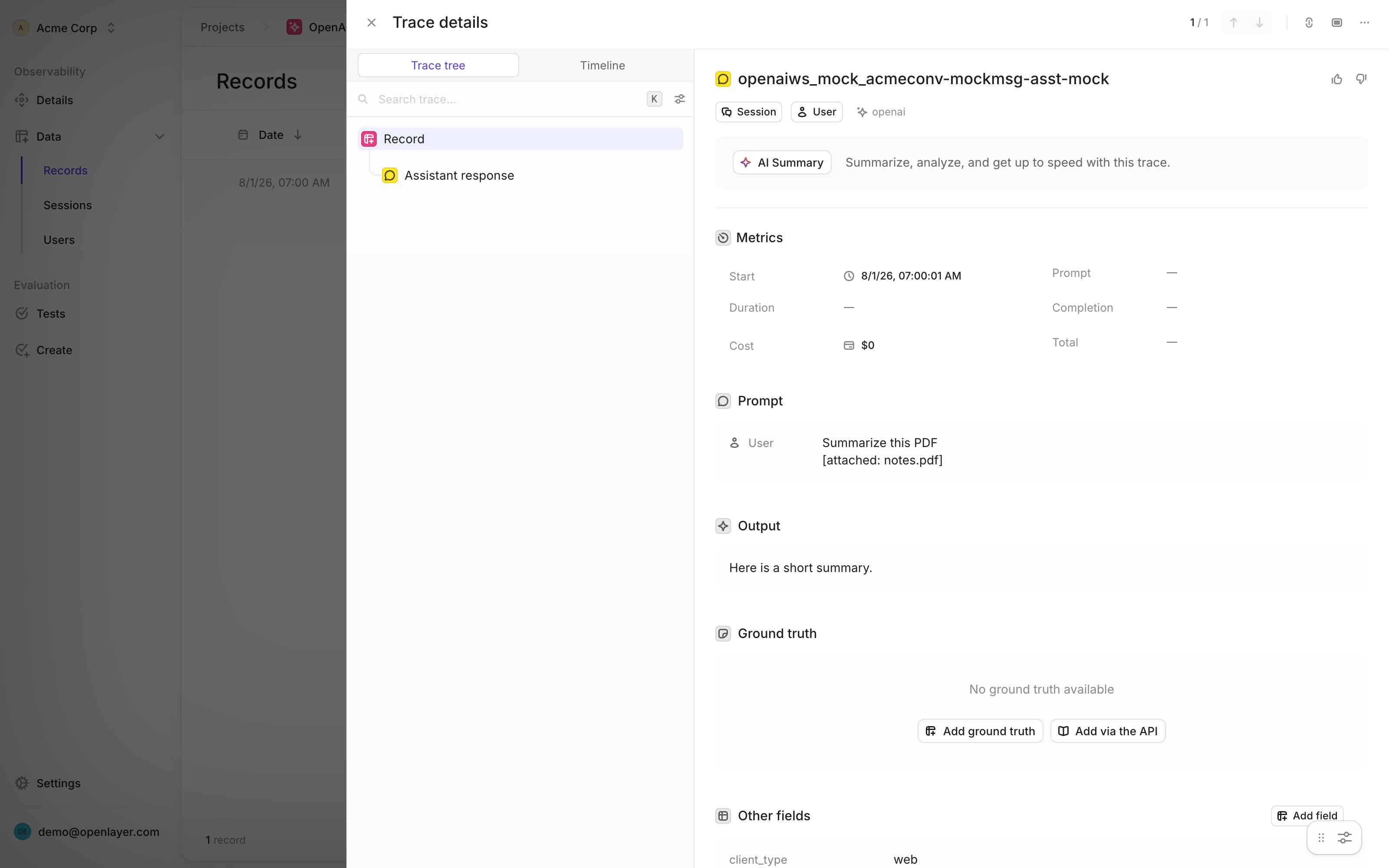
Hidden system prompts and reasoning traces are not part of OpenAI’s
conversation schema, so they are not available to ingest.
Codex sessions
Codex activity is correlated into turns: a prompt, the response it produced, and the tool calls in between, all in one trace, with token counts where OpenAI reports them. Openlayer also records the client, environment, service tier, and reasoning effort behind each turn. Lifecycle-only events — the ones that record session bookkeeping rather than model work — are ignored, so they do not show up as empty traces.Sync health
The Sources table is the operational view of the connector. Each row reports:
A steadily climbing Lag with a flat Files count means the source has stopped making progress.
A rising Duplicates count is not a problem — it is the source re-reading files it has already
ingested and skipping them.
A backfill clears what the source remembers having read, so it deliberately re-reads those files:
expect Duplicates to stay at zero and Files and Events to climb again. No traces are
duplicated by this — rows are deduplicated by their stable inference ID when they are written.

Evaluating the ingested data
Once traces are flowing, everything Openlayer does with application data applies to ChatGPT and Codex activity:- Create tests to score response quality, safety, or tone across real employee usage
- Detect PII or toxicity in prompts and replies
- Use governance frameworks to evidence AI-usage controls with real traffic
- Track adoption, model mix, and token spend by team