


Authentication methods
Openlayer supports two ways to authenticate with BigQuery:Prerequisites
Both methods require:- A GCP project with BigQuery enabled
- A service account with the required BigQuery roles
- An Openlayer project with monitoring mode enabled
Setup Guide
Step 1: Create a service account and grant roles
Create a dedicated service account in your GCP project for Openlayer to use:roles/bigquery.jobUser: run queriesroles/bigquery.dataViewer: read table dataroles/bigquery.metadataViewer: read metadata
Step 2: Configure authentication and connect
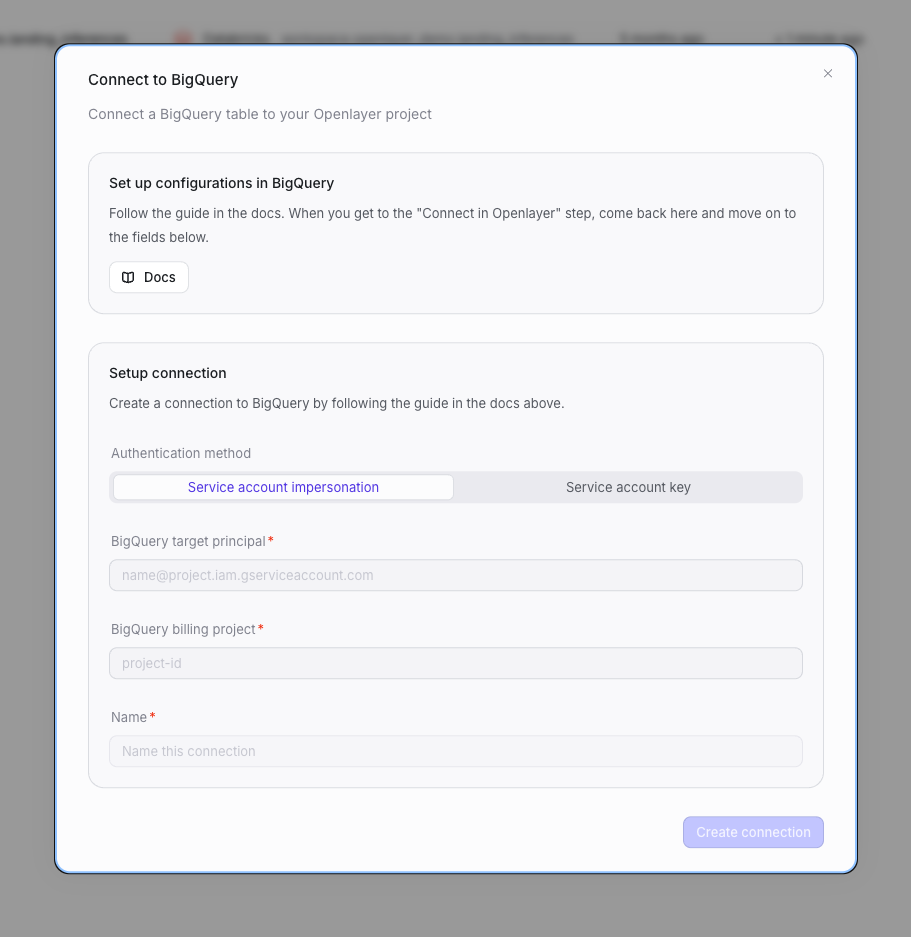
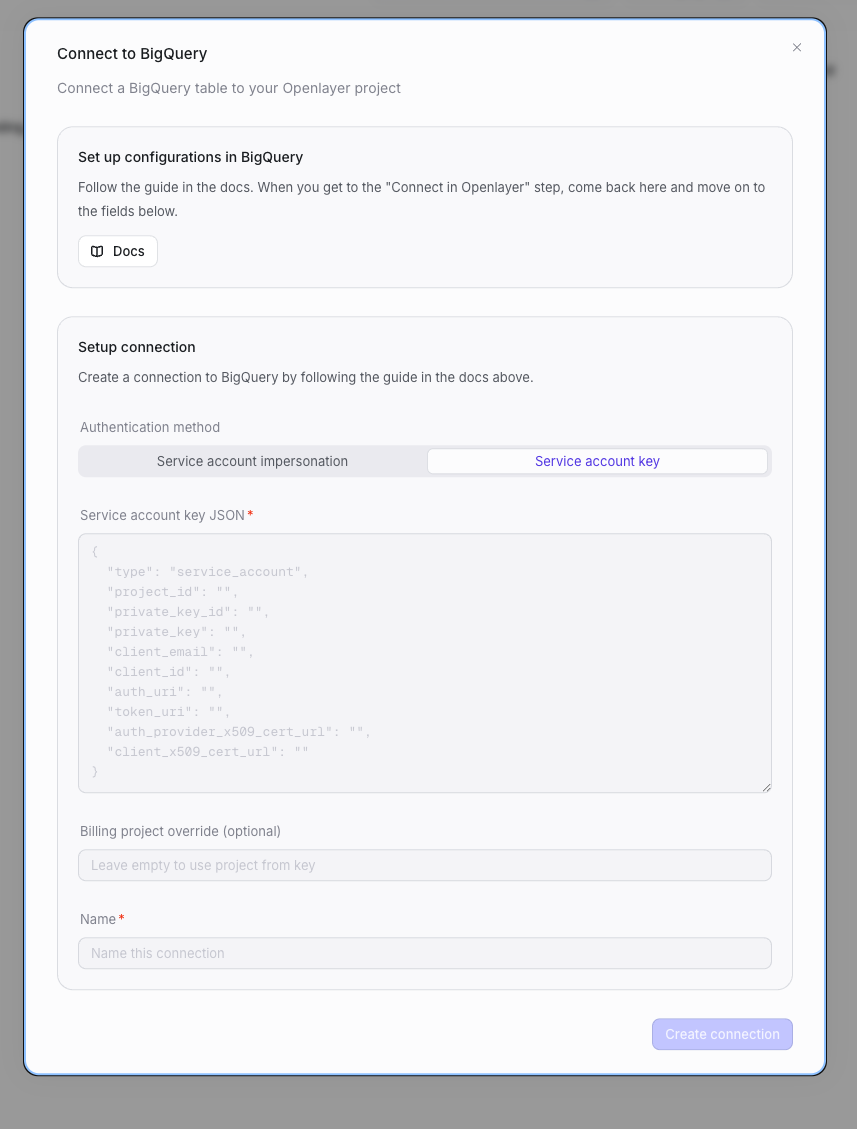
In your Openlayer workspace, go to Data sources, select BigQuery, and click Connect. Choose your authentication method and follow the corresponding tab:- Service Account Impersonation
- Service Account Key
Allow Openlayer to impersonate your service account
Grant Openlayer’s service account permission to impersonate yours:Fill in the connection fields
- BigQuery target principal: your service account email
(e.g.
openlayer-bigquery@your-project-id.iam.gserviceaccount.com) - BigQuery billing project: your GCP project ID (where query costs are billed)
- Name: a descriptive label for this connection
Step 3: Configure your table
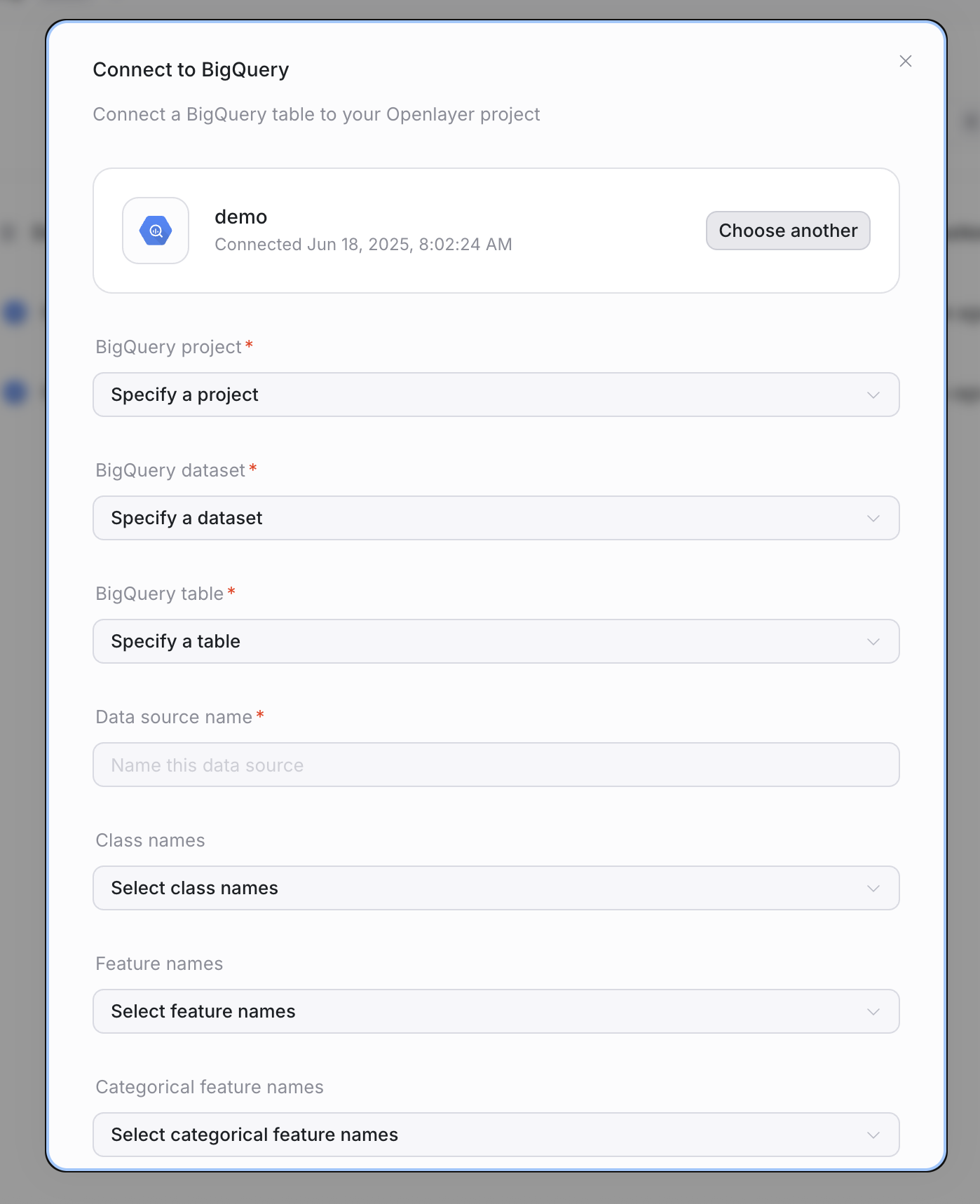
After the connection is created, configure the table you want to monitor:- Project: GCP project containing the table
- Dataset: dataset name
- Table: table name
- Timestamp column name (optional): column used to order or filter rows for monitoring windows. This field is not required for BigQuery.
- Unique ID column name (optional): column used to identify unique rows. This field is not required for BigQuery; if you omit it, Openlayer auto-detects it.
- Data source name: a descriptive name for this table in Openlayer
Optional: ML-specific settings
If the table contains ML outputs, you can provide additional context:- Class names
- Feature names
- Categorical feature names
Multiple connections
You can create multiple BigQuery connections in the same Openlayer workspace — each with its own authentication method, billing project, and service account. This is useful when:- Different teams own different GCP projects
- You want to isolate billing across data sources
- Different tables require different access permissions
Security considerations
Service Account Impersonation
Service Account Impersonation
No keys exchanged — Openlayer never holds long-lived credentials for your project.Auditable — every impersonated action is logged in Cloud Audit Logs under both the impersonator and target accounts.Revocable — remove the
serviceAccountTokenCreator role to revoke access instantly.Service Account Key
Service Account Key
Encrypted at rest — uploaded keys are encrypted and stored securely in Openlayer’s infrastructure.Rotate regularly — set a reminder to rotate keys at least every 90 days.Least privilege — only grant the three BigQuery roles listed above. Avoid
roles/owner or roles/editor.Revoke if compromised — delete the key in the GCP console and generate a new one.Troubleshooting
- Permission errors → confirm the roles above are granted to your service account.
- Impersonation errors → ensure
roles/iam.serviceAccountTokenCreatoris granted to Openlayer’s service account (impersonator@unbox-ai.iam.gserviceaccount.com). - Invalid key errors → verify the uploaded JSON file is the correct service account key and has not been revoked.
- Billing errors → check that the billing project ID is correct and that the service account has
bigquery.jobUseron that project.